Windows:
- Microsoft® Windows 7, Windows 8, Windows 10, or Windows 11 (32 bit and 64 bit)
- 64 MB of hard disk space
Macintosh:
- Mac OS X v10.10-14.6
- 64 MB of hard disk space


Finally—a test generator that gives instructors what they've always wanted! We watched and listened as educators told us what they really wanted in a computerized test generator and question editor. The result is TestGen 7!
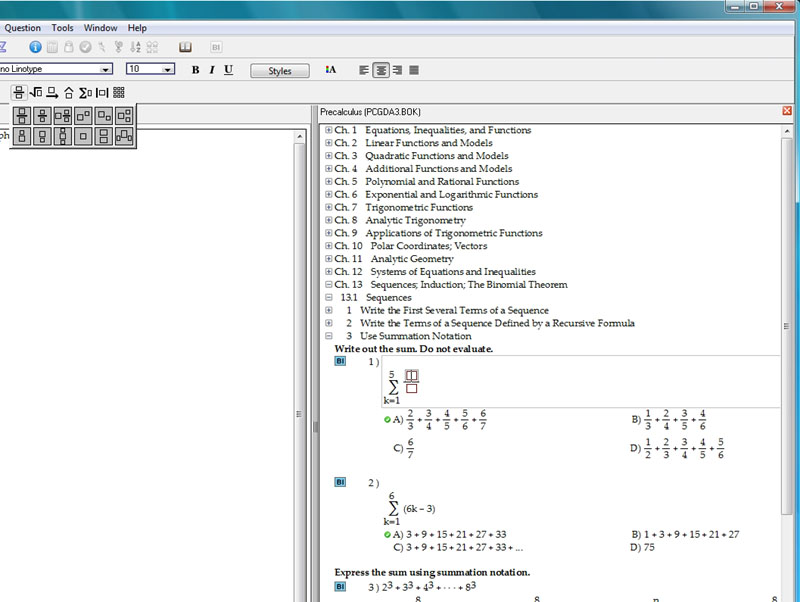
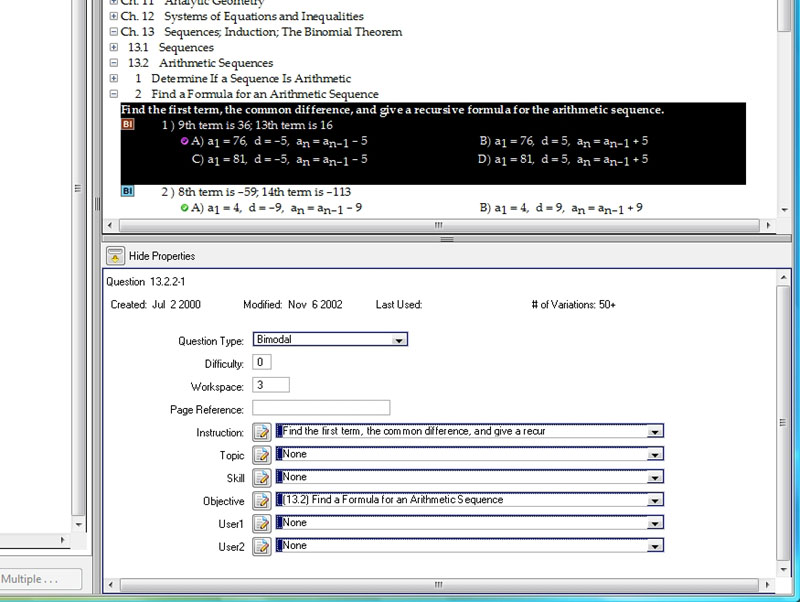
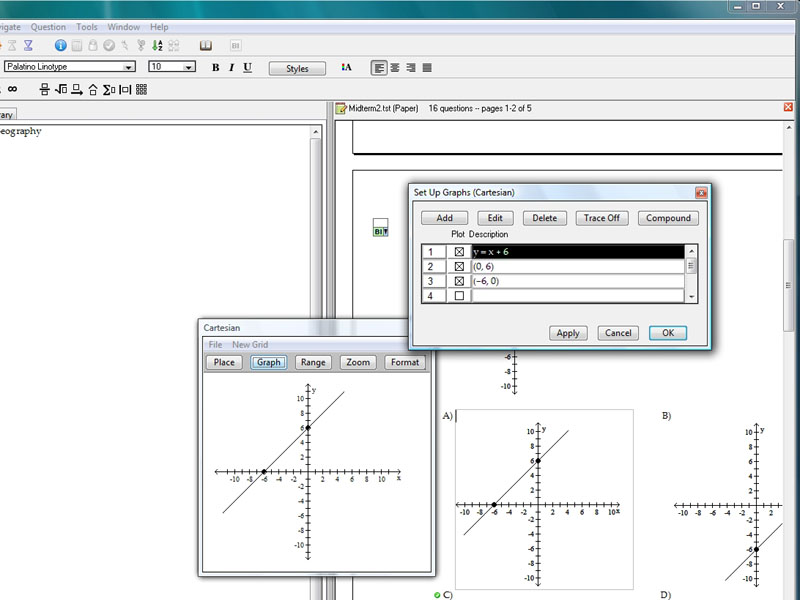
TestGen is a complete, state-of-the-art test generator software package that allows instructors to easily create and administer tests on paper, electronically, or online. They can select test items from publisher-supplied testbanks included with TestGen for rapid test creation or create their own questions from scratch. Questions can include stylized text, symbols, graphics, and equations that are inserted directly into questions using built-in mathematical templates. TestGen's random generator provides the option to display different text or calculated number values each time questions are used. With both quick-and-simple test creation and flexible and robust editing tools, TestGen is a complete test generator system for today's educators.
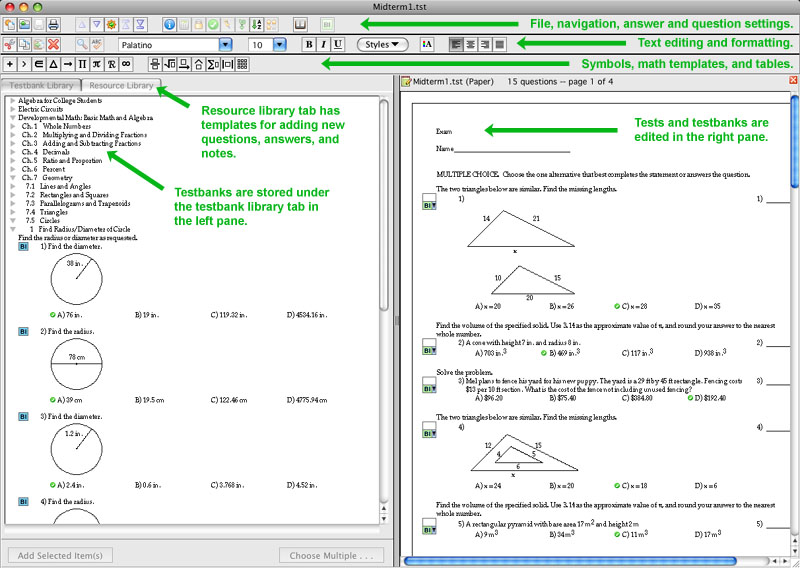
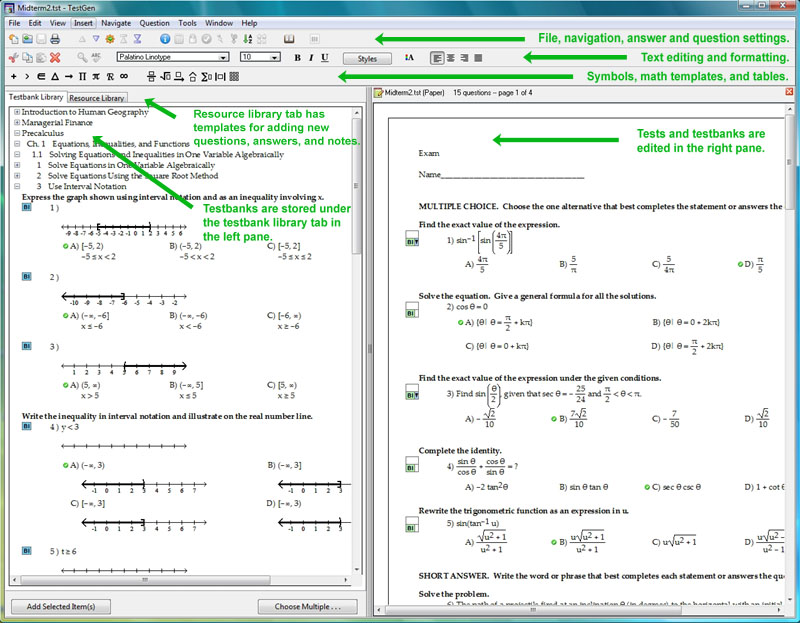
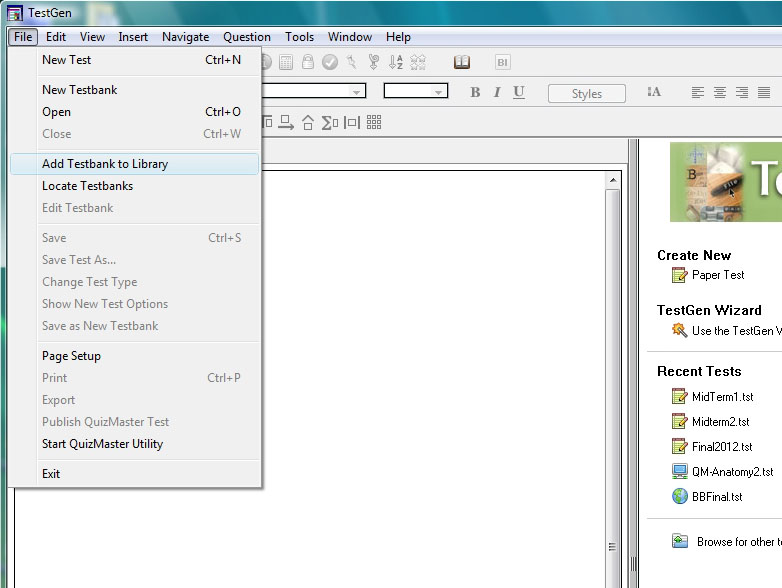
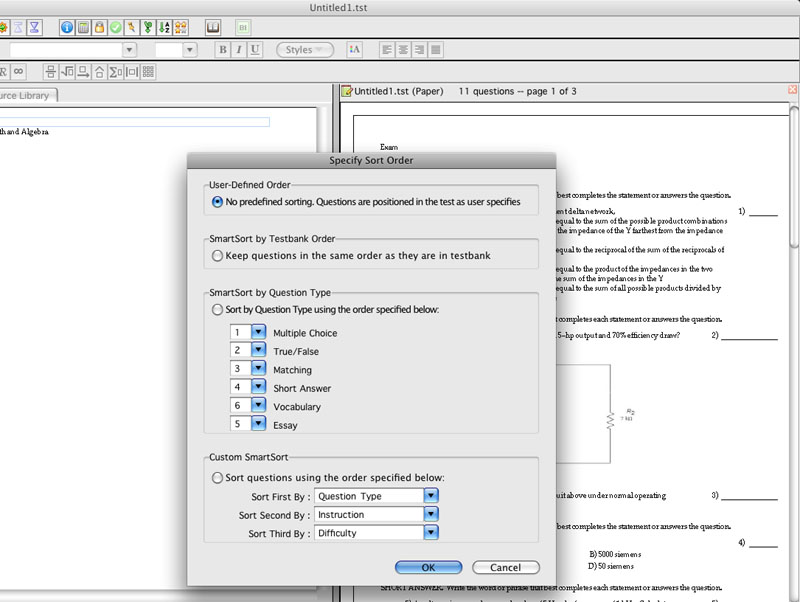
A blend of existing and new features makes it easy to manage testbanks and make tests:
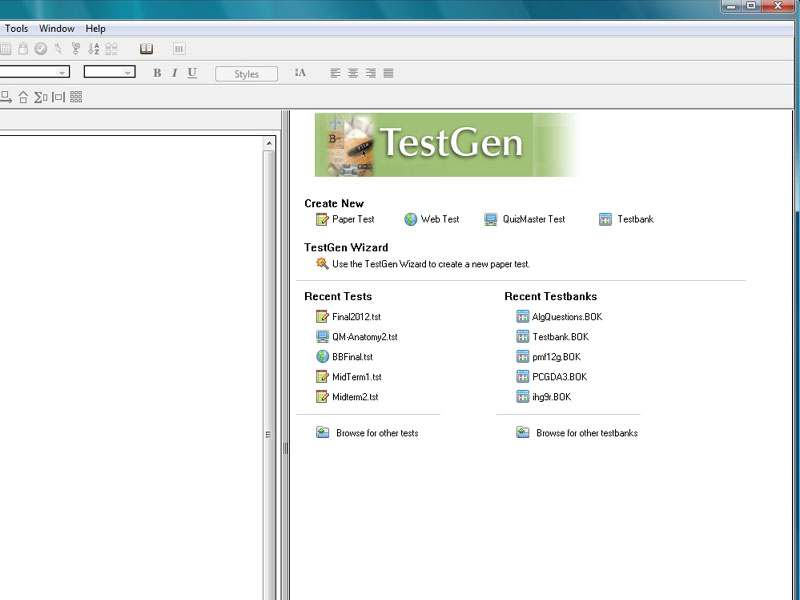
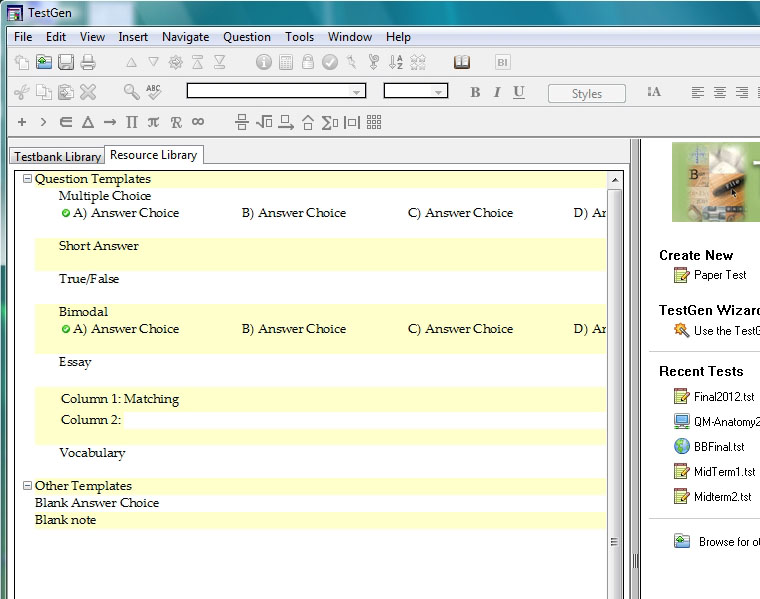
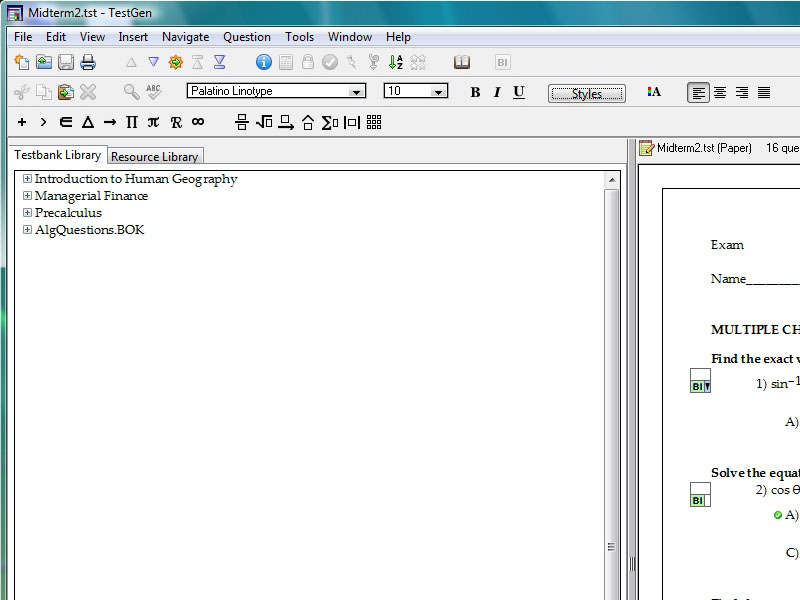
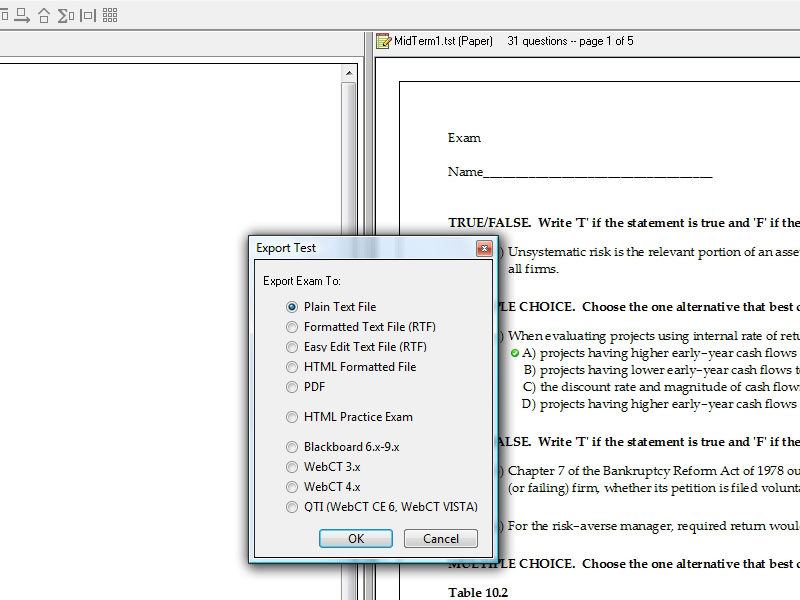
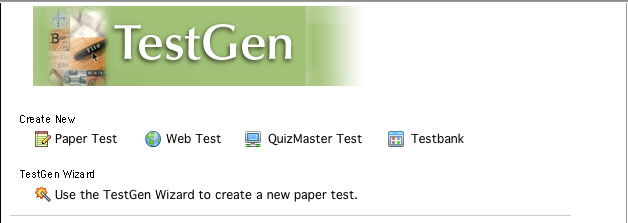
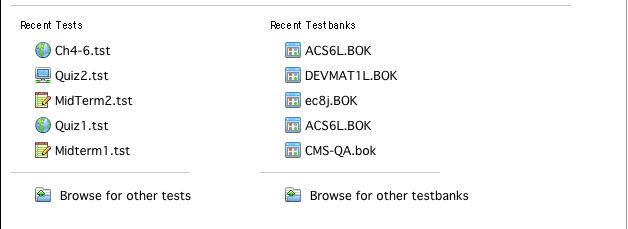
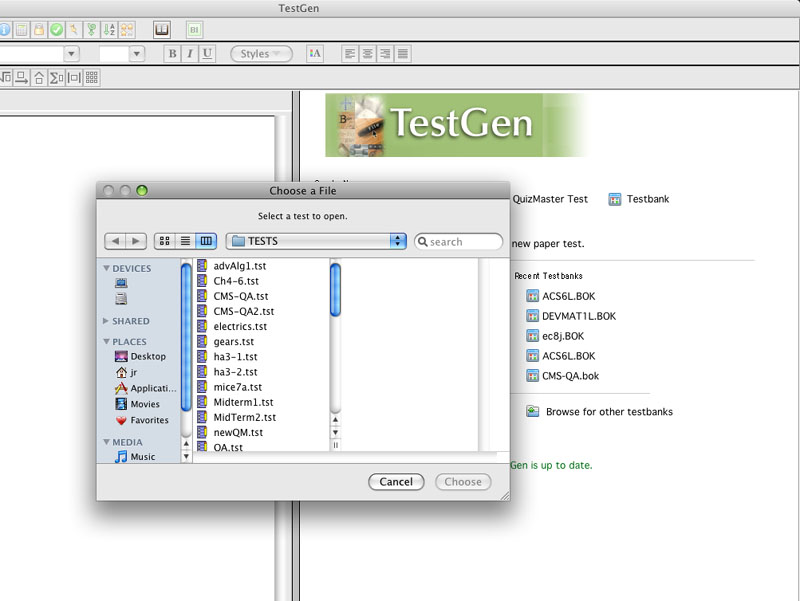
The Startup Window on the right half of the screen shows all the options you need to get started with making tests:
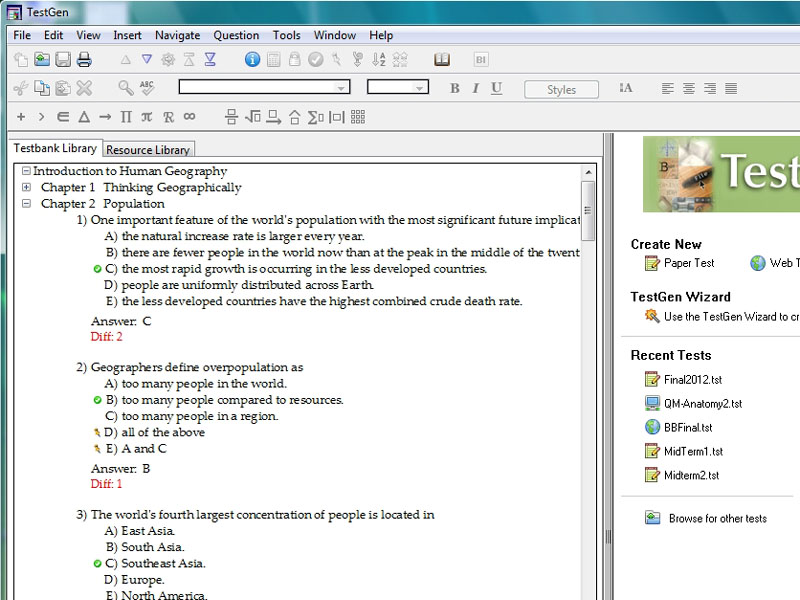
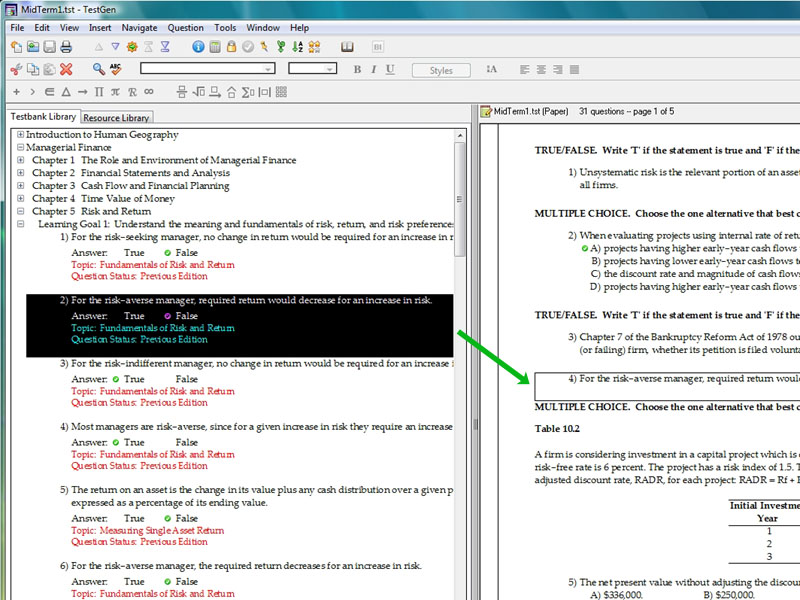
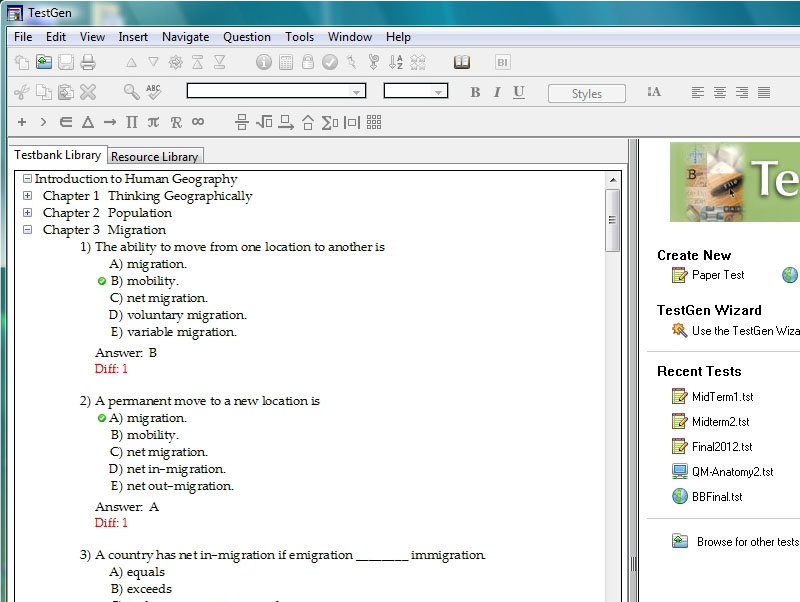
The Testbank Library on the left side of the screen gives quick access to the testbanks on your computer:
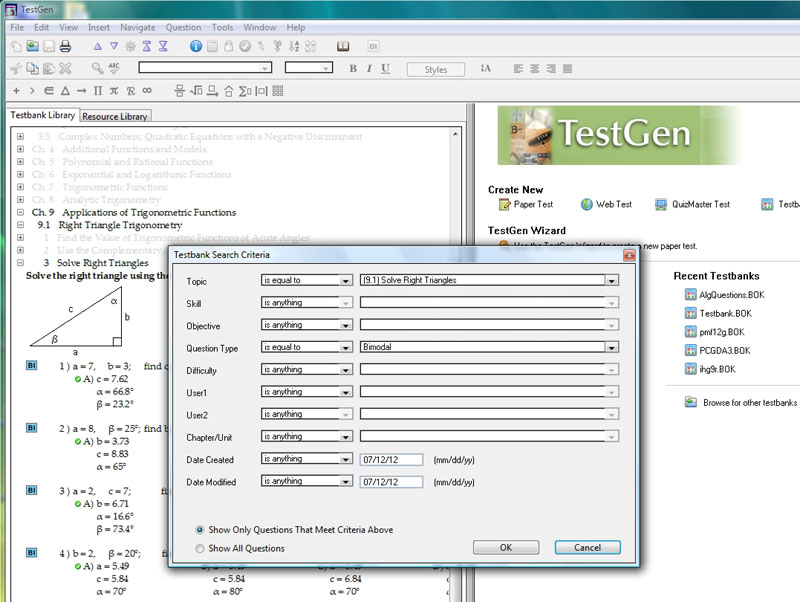
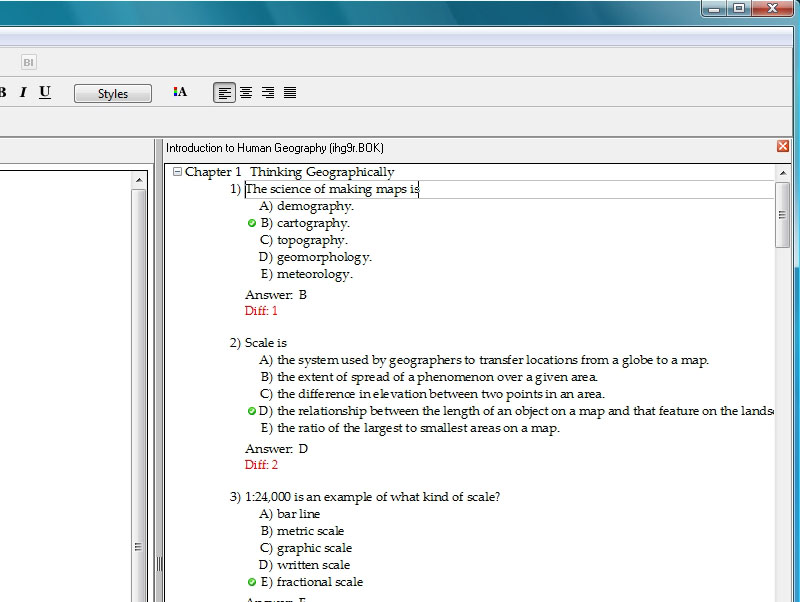
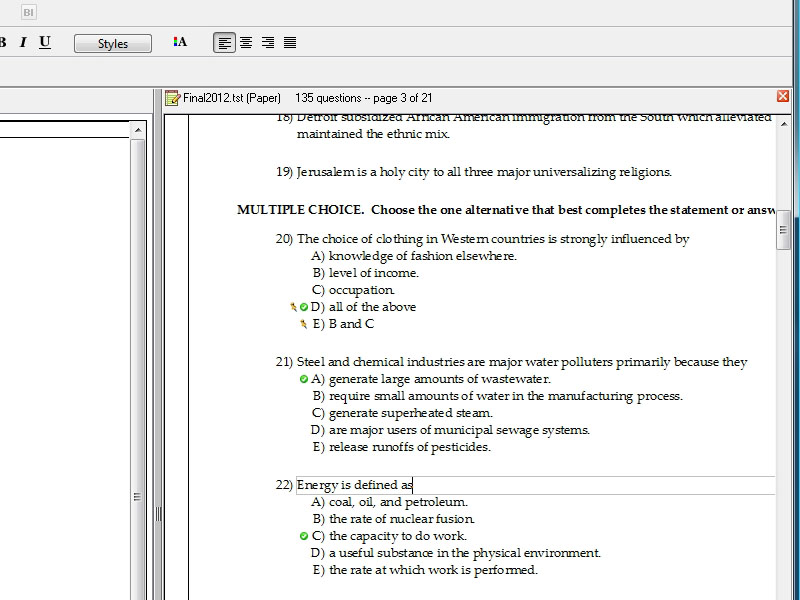
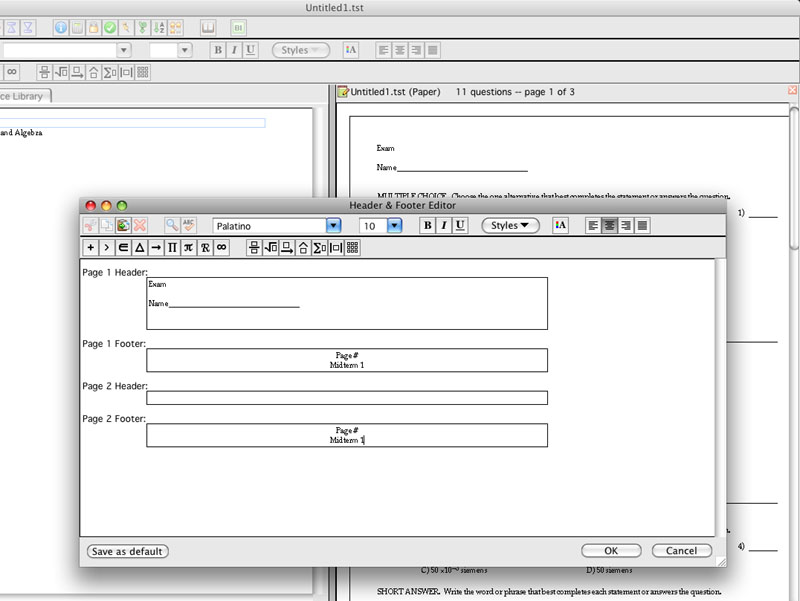
Live editing fields eliminate the need for a separate question editor when creating or modifying tests. Simply click in the question or answer field and type or edit as needed.
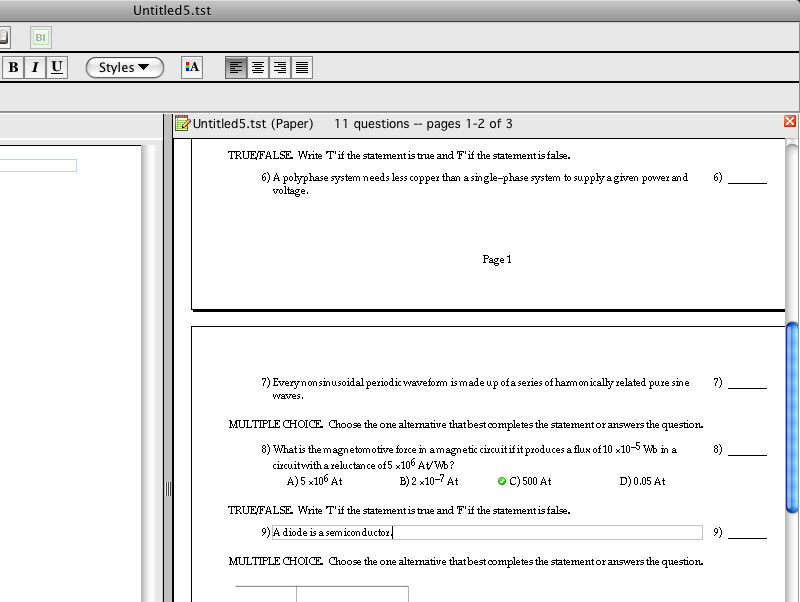
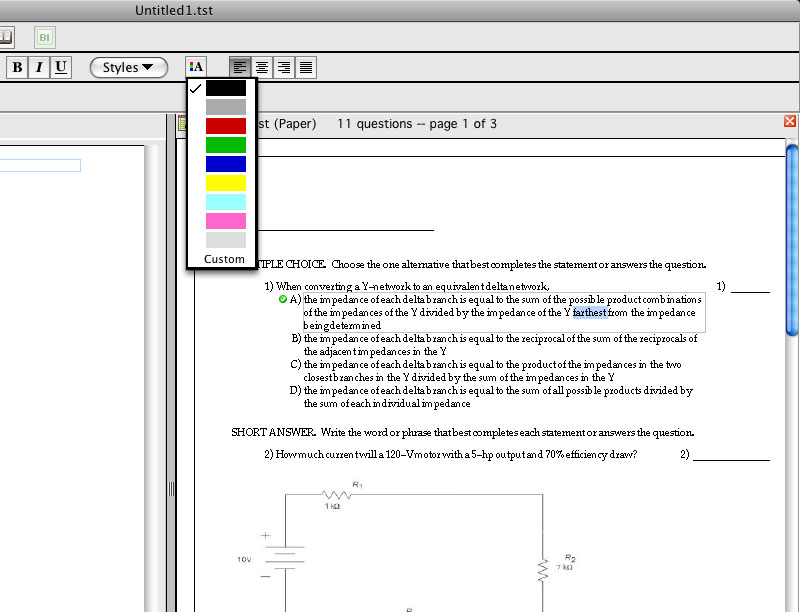
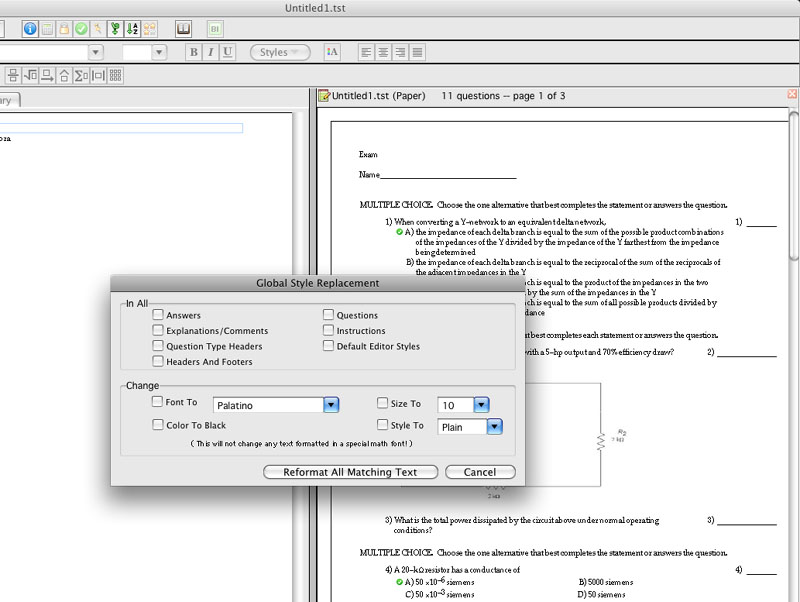
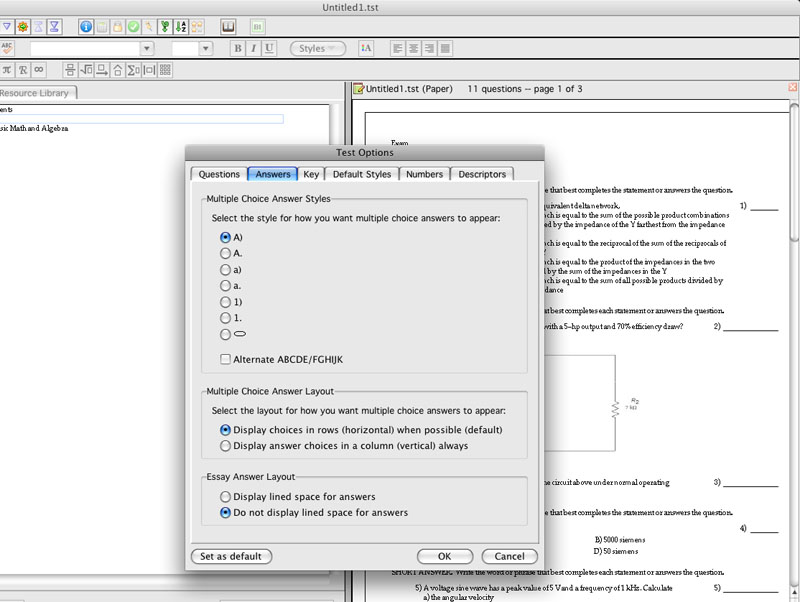
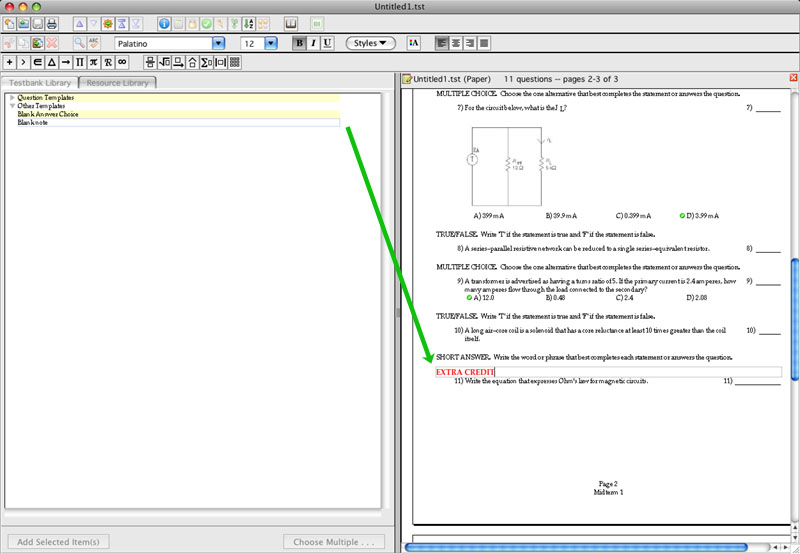
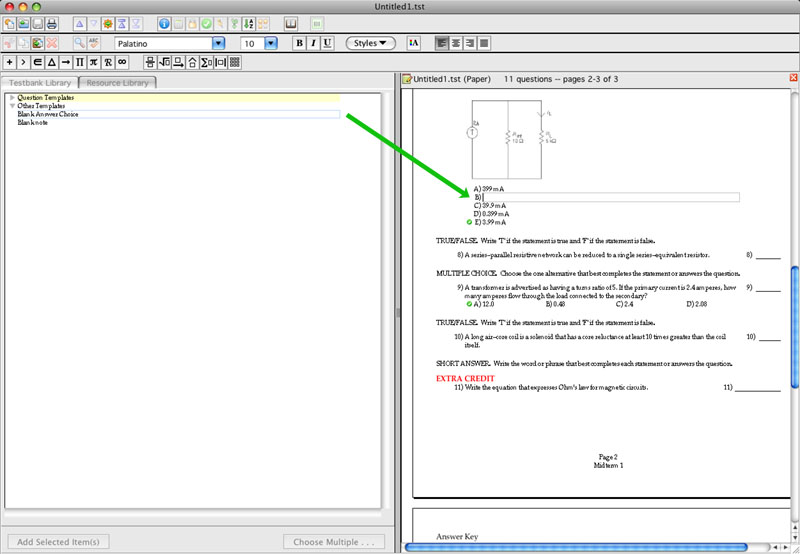
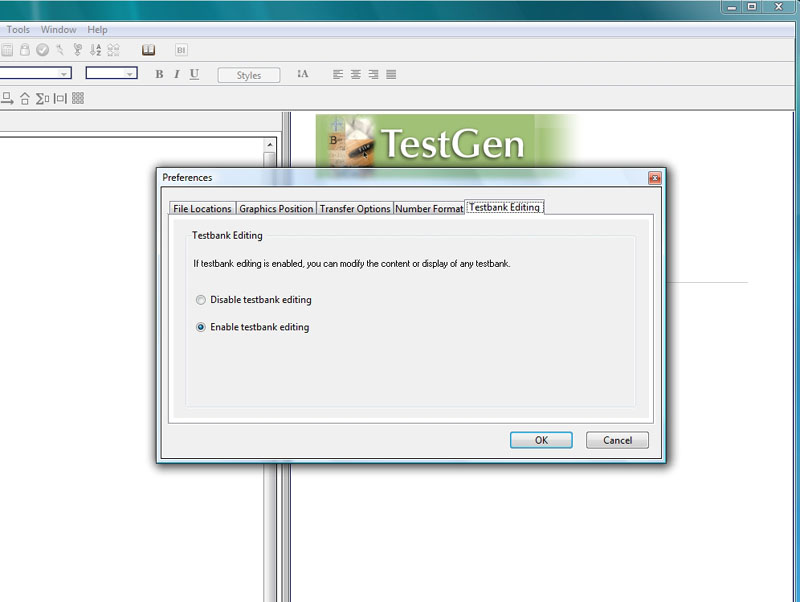
Edit testbank questions in the same way as test questions—on-screen, without a separate question editor.