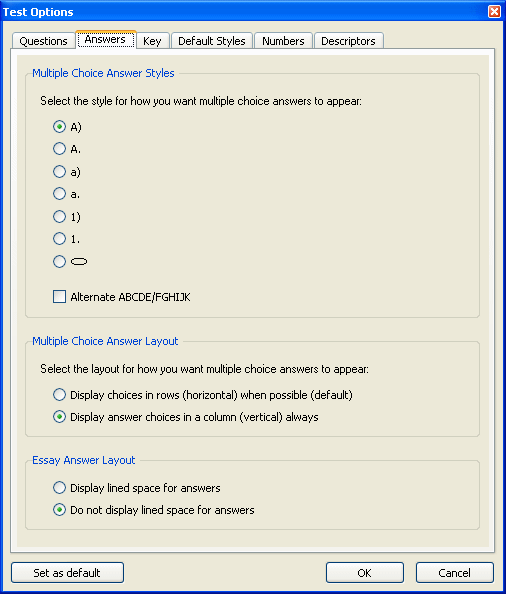
When you want to change the way answer choices are shown for multiple-choice questions on your test, or include answer lines for essay questions, select "Preferences > Test Options" from the Tools menu and click the Answer Display tab. Be sure the test is in Question view to observe these settings.
Click one of the radio buttons to indicate which style you want to use to label answer choices for multiple-choice and bimodal questions and click OK. If you want to save the settings so they apply to the current test as well as all future tests, click the Set as Default... button before you click OK.
The last of the multiple choice answer styles provides the choice of an oval, or "bubble," that will contain the answer choice letter so students can fill-in the oval for the correct answer with a pencil or pen.
If your test uses multiple-choice questions with five or fewer answer choices, and you use preprinted scoring sheets that have alternate sets of letters for every other row, check the box next to "ABCDE/FGHJK." This assigns alternate sets of letters to the choices for multiple-choice questions, using ABCDE for odd-numbered questions and FGHJK ("I" intentionally omitted) for even-numbered questions. Students can mark their answers on the sheets, which can then be machine-scored.
Your choice for this section determines whether answer choices for multiple-choice and bimodal questions are
arranged in rows horizontally across the page, or
stacked in a column vertically.
If you choose to have answer choices arranged horizontally across the page, TestGen evenly fits two to five choices across the page, depending on the width of the widest answer.
Select one of the choices to either display or not display write-on lines when workspace is shown for essay (ES) questions. When write-on lines are selected, each line of preassigned workspace displays a horizontal line for students to write their answer to the question.